
1
Instructions
Check for tickets asking to upload an image.
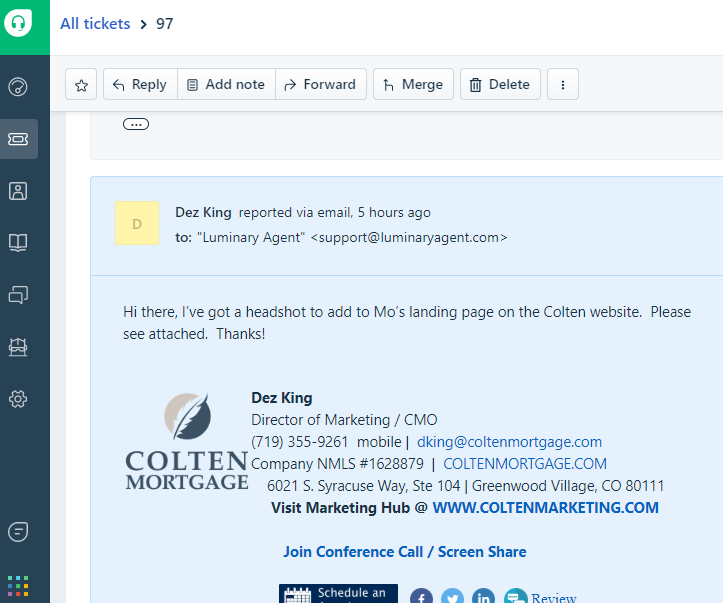
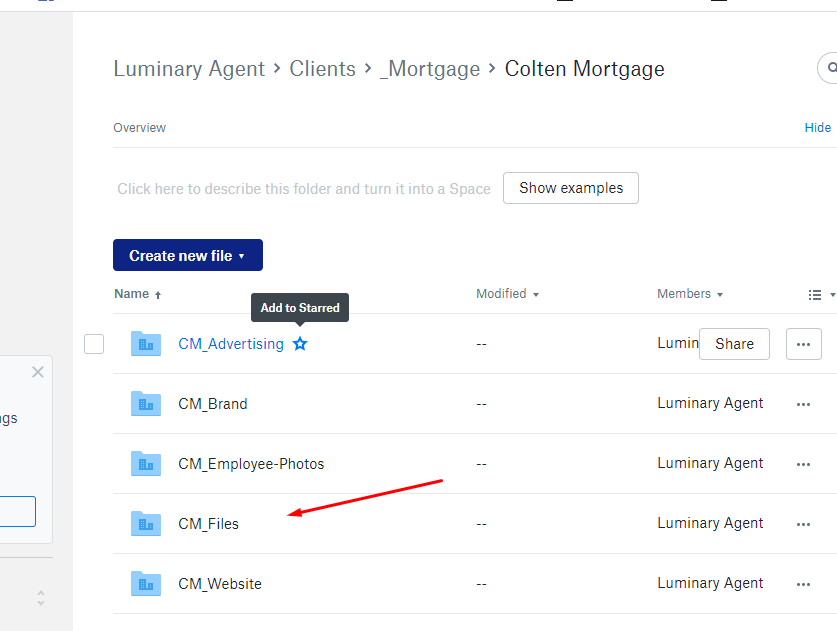
Download the image attachment on the ticket and save it to the client’s folder “Files”
Dropbox > Luminary Agent > Clients > _Mortgage > Colten Mortgage > CM_Files
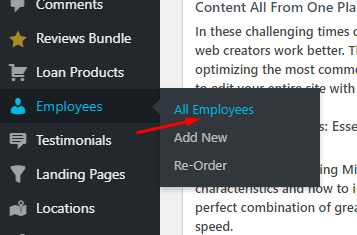
Go to the hub and login to the client’s website here
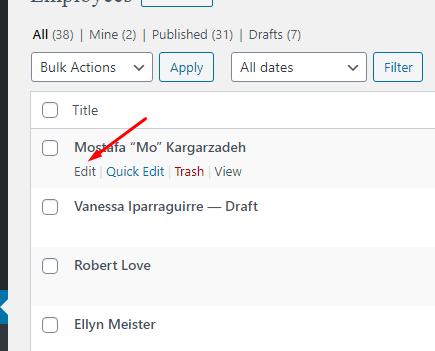
Pick the employee profile page you want to update and click on edit.
You will then be taken to the Edit Post page.
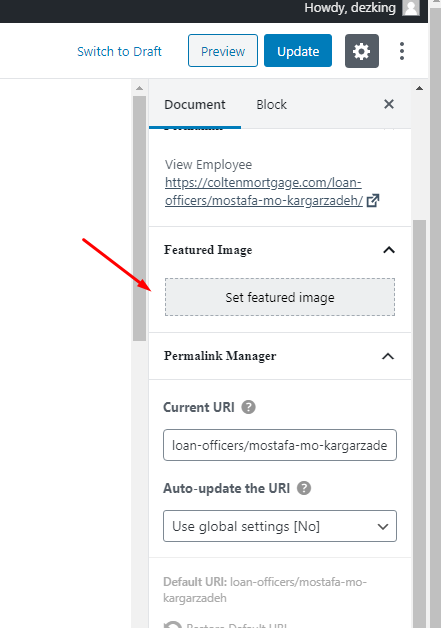
On the right hand section, click on the “Set featured image” button and start uploading the image
Edit the image to 800 x 800 by resizing and cropping the tool via the edit option and then click save
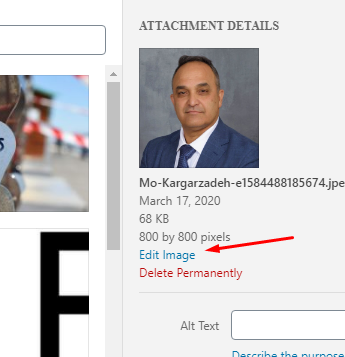
Click the Set Featured image once it’s ready.
Click the Update button on the top section of the post and you’re done!
Back to Top