
Download and Prepare Template File
All Keller Williams contact imports must use this file and the columns MUST stay in this order.
A) Download the Command template at this link
B) Open the .csv file and the file containing the contacts you’re going to import
C) Copy each column from the customer’s file into the Command template file. Copy over as much information as you can.
Back to TopAdd Tags and Cleanup Data
A) If the client has indicated tags to add to the contacts, insert the tags into the “Custom Tags” column as comma-separated values.
B) If any of the contacts have dates in the Birthday (column G) or Home Anniversary (column H) columns, these dates must be converted to text in order to upload correctly. Here are the steps to do this. I’ll use the Birthday column in my example.
- Insert a column to the right of column G
- Select cell H3
- Place your cursor into the formula bar and copy this formula: =IF(G3<>””,TEXT(G3,”mm/dd/yyyy”),””) then press enter
- Fill this formula down to the last contact row in the list
- Select all H cells in the contact range and copy
- Place your cursor in cell G3 and click Paste > Paste Values
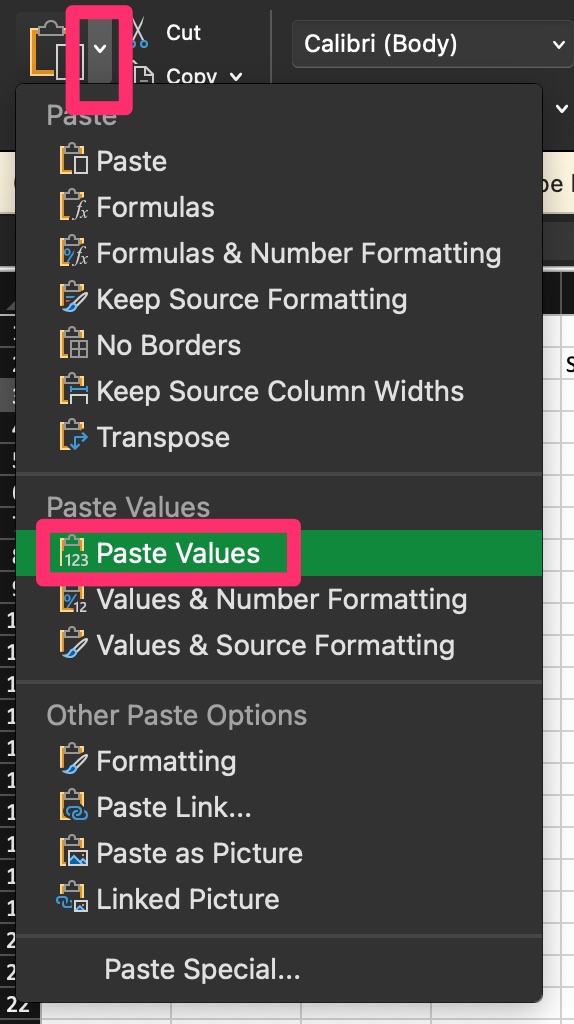
- Delete the column you inserted (column H)
C) All addresses MUST have a label. The labels you can use are HOME, WORK, RENTAL, VACATION, OTHER.
Back to TopImport Template File
A) Log in to the customer’s Command account at this link using their credentials in 1Password
B) Navigate to Contacts
C) Click “Import”
D) Select the import template from the previous step and click “Import Contacts”
E) Once the file has imported, you’ll see a notification show up under the notification bell. If any contacts failed to import, download the file and send it to Cody.
Back to Top