
Upload a Design
A) Login to the client’s QuantumDigital account using the credentials in 1password
B) Under “New Order” click then “Ship to Me Printing”
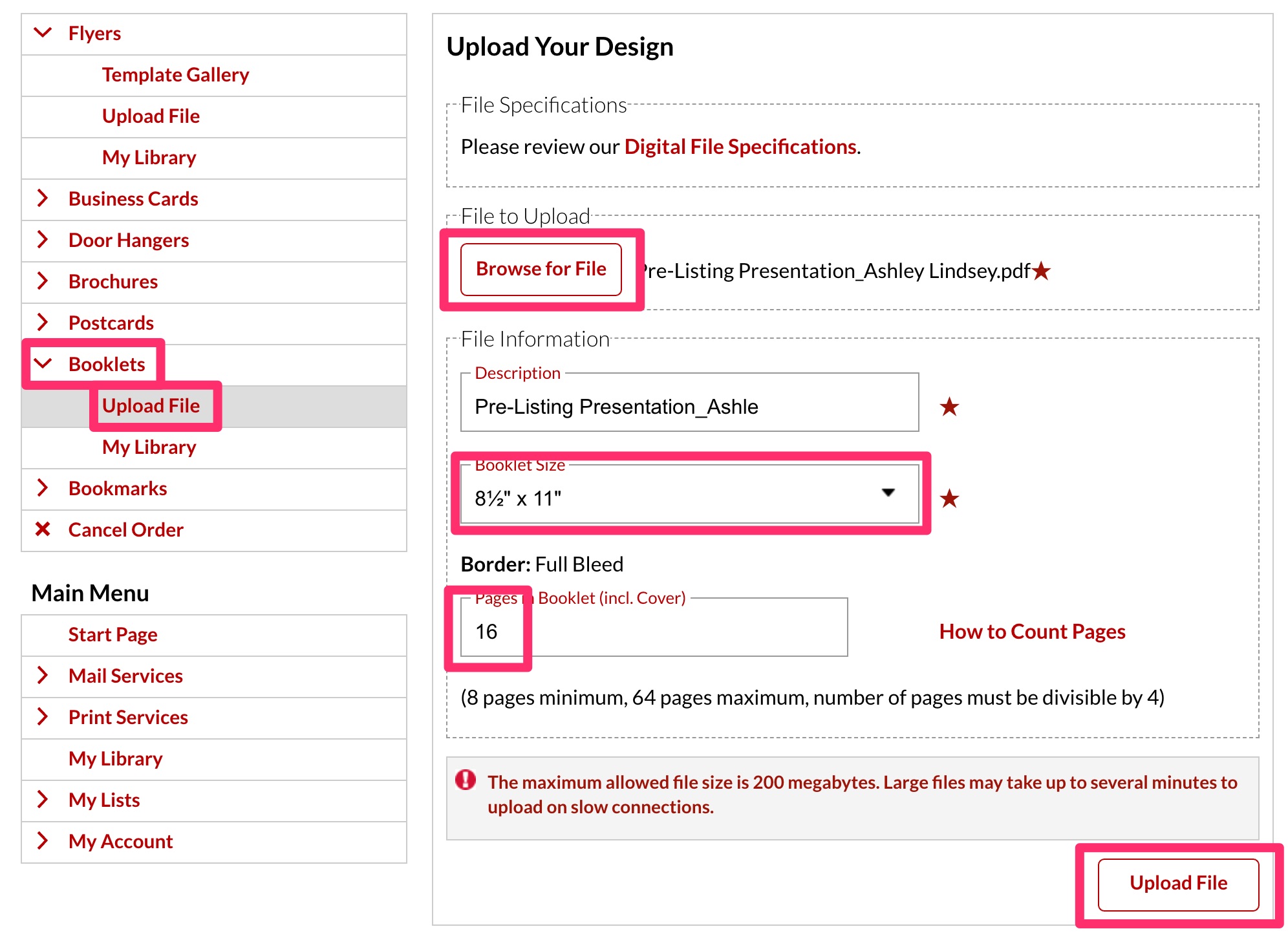
C) Click on “Booklets” and then “Upload File”
D) Click “Browse for File” and locate the presentation PDF in the client’s public folder. NOTE: ONLY USE THE PDF IN THE FOLDER THAT ENDS IN _Bleed
View File and Input Quantity
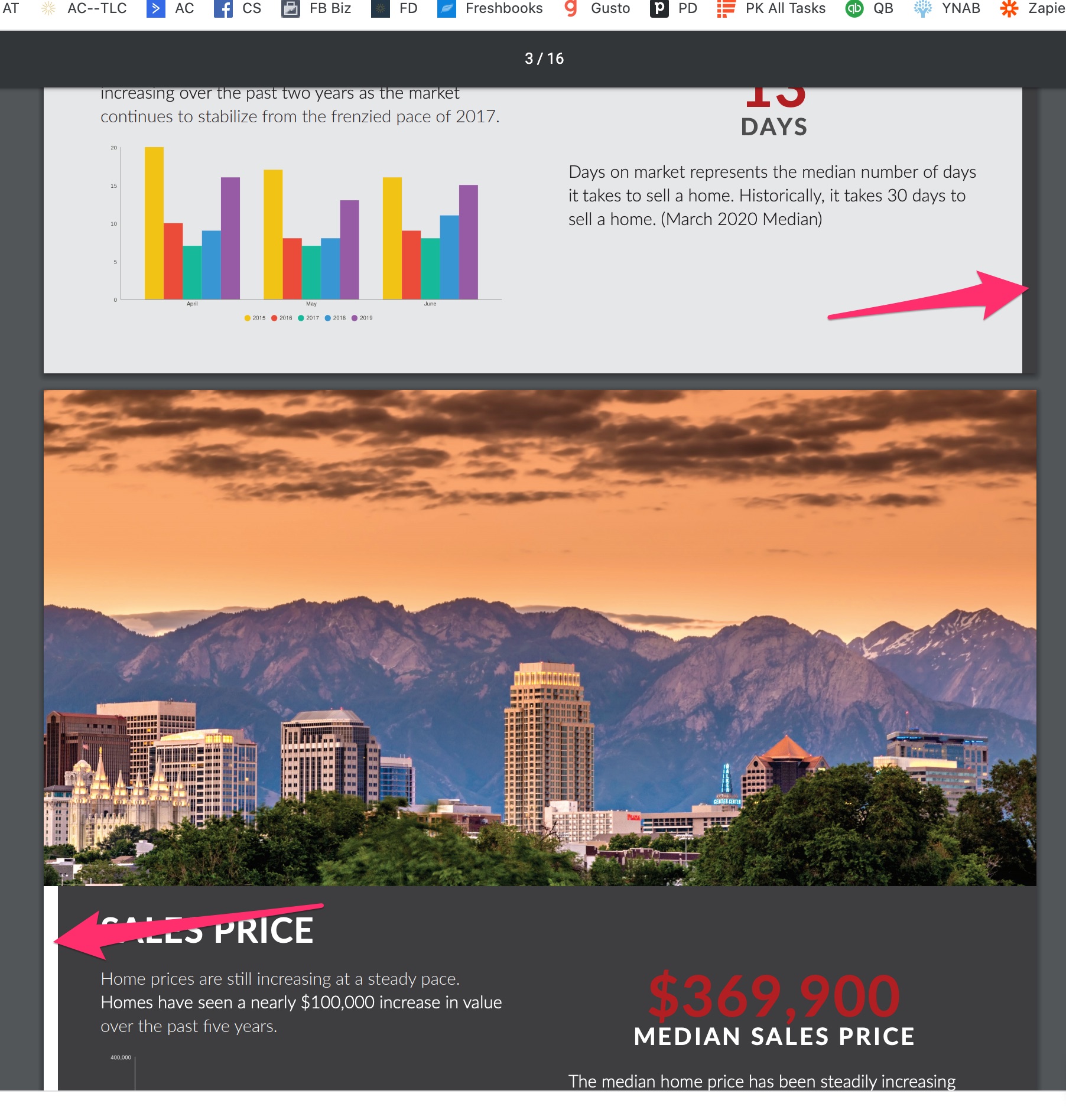
A) Click “View File”. You should see the edges of the spread on each page. That’s how you know the file is correct.
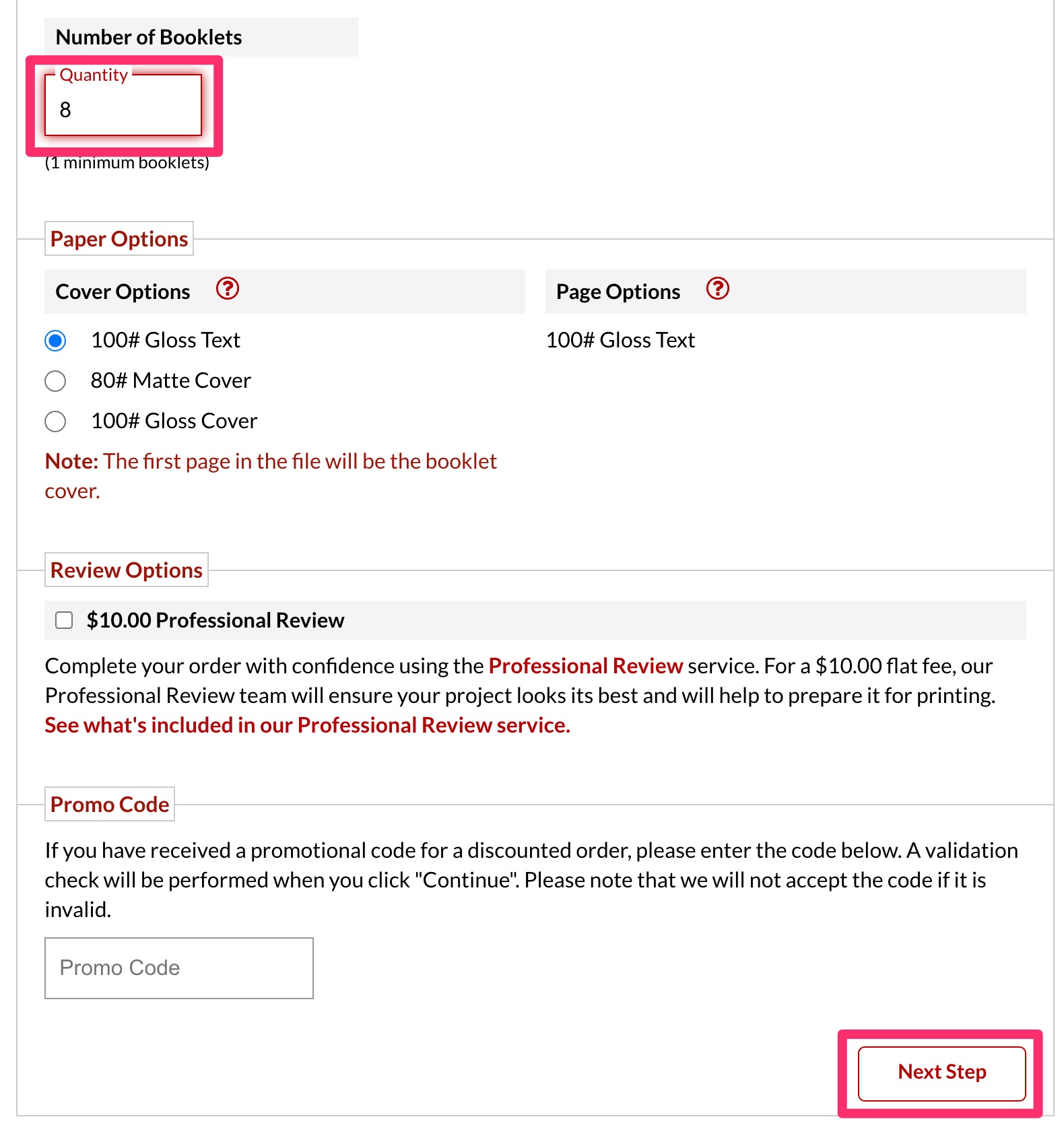
B) Enter the quantity requested and click “Next Step”
Confirm Shipping/Billing Details and Place Order
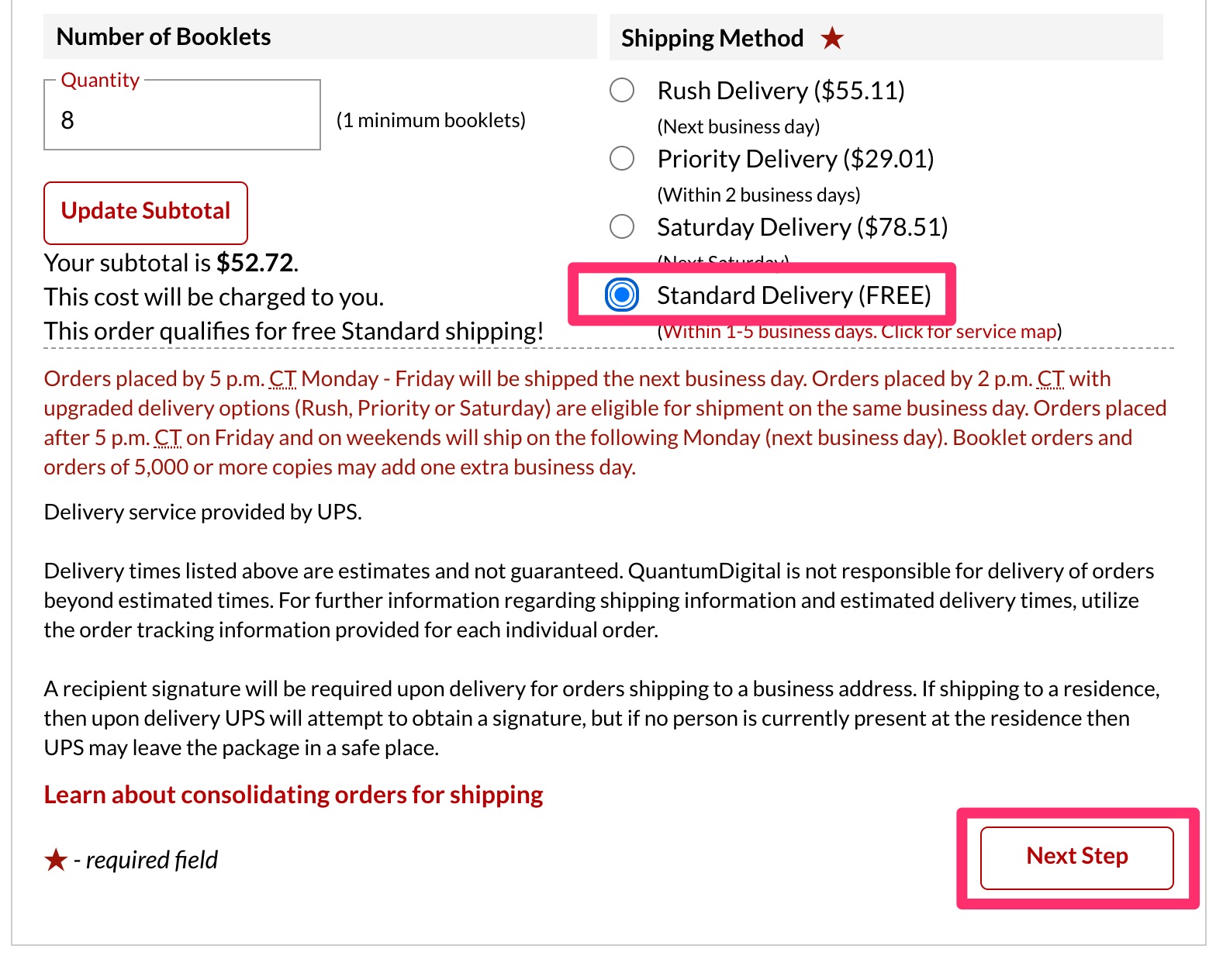
A) Confirm the shipping address is correct for the client
B) Choose the shipping method (Standard Delivery unless otherwise specified)
C) Click “Next Step”
D) Click “Next Step” again on the billing screen as the details should already be entered
E) [CONDITIONAL] If you are ordering pre-listing AND buyers presentations, you’ll need to tell QuantumDigital to combine for shipping.
- To do this, click on “Add/Edit Instructions” on the final page before clicking “Place Order”
- In the category dropdown, select “Part of Multiple Order”
- In the textbox, type “Order X of X. Please consolidate for shipping.” Make sure to replace the first X with the order you’re currently processing and the second X with the total number of orders. For example: “Order 1 of 2.”
- Click “Save”
F) Click “Place Order”
Back to Top