Special Note:
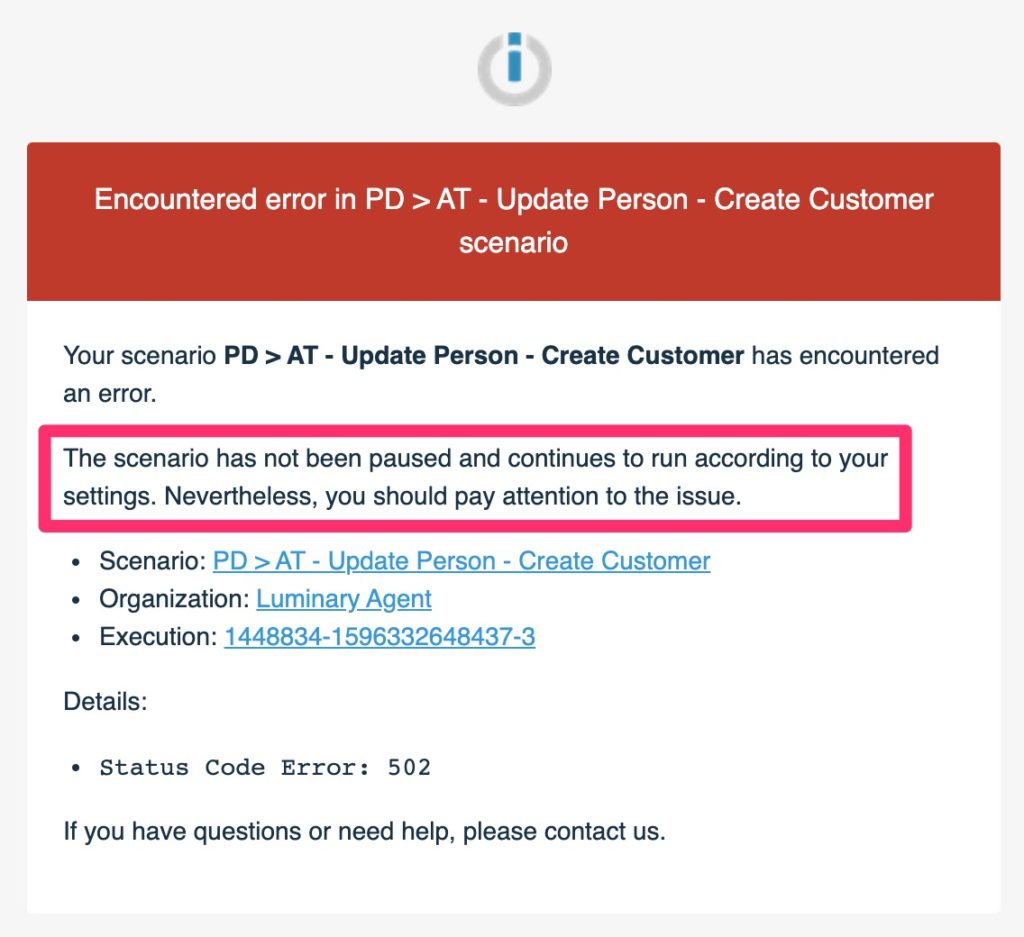
Once you have investigated the error code, if the scenario has not been paused, you may simply delete the ticket.
Troubleshooting Video:
If you’re trying to diagnose a problem, please follow this video for a tip.
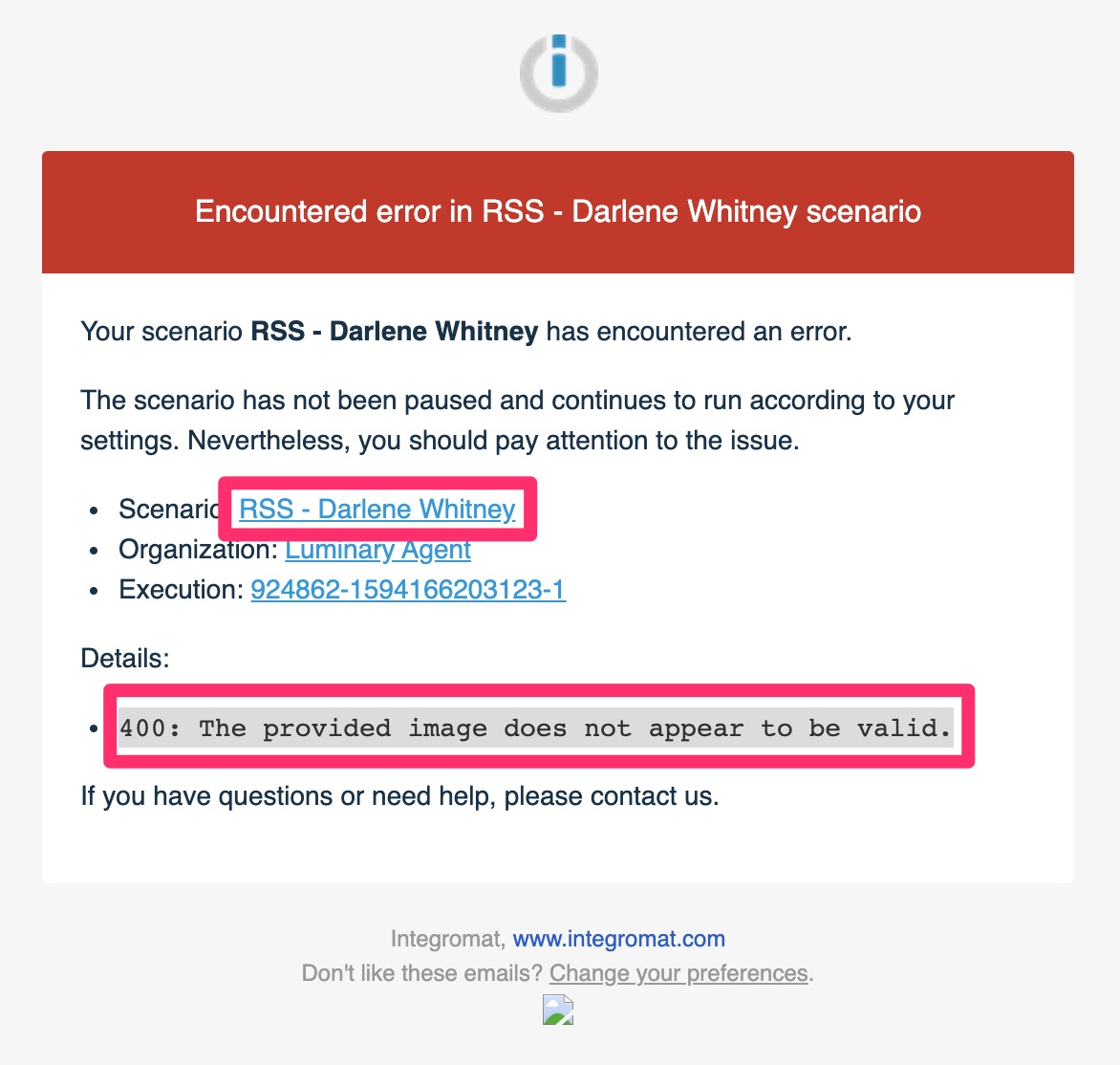
400: The provided image does not appear to be valid.
If the error is “400: The provided image does not appear to be valid.” then take these steps to try and resolve it.
A) Click on the “Scenario” link in the error ticket
B) Sign into Integromat using the login credentials found in 1Password
C) If the scenario has had a “Success” status since the error, you may simply delete the error ticket. Otherwise, click on the “Details” link in the most recent “Error” row

D) In the Scenario Diagram, click on the bubble with the error, expand the “Media” section, and copy the “Thumbnail” url
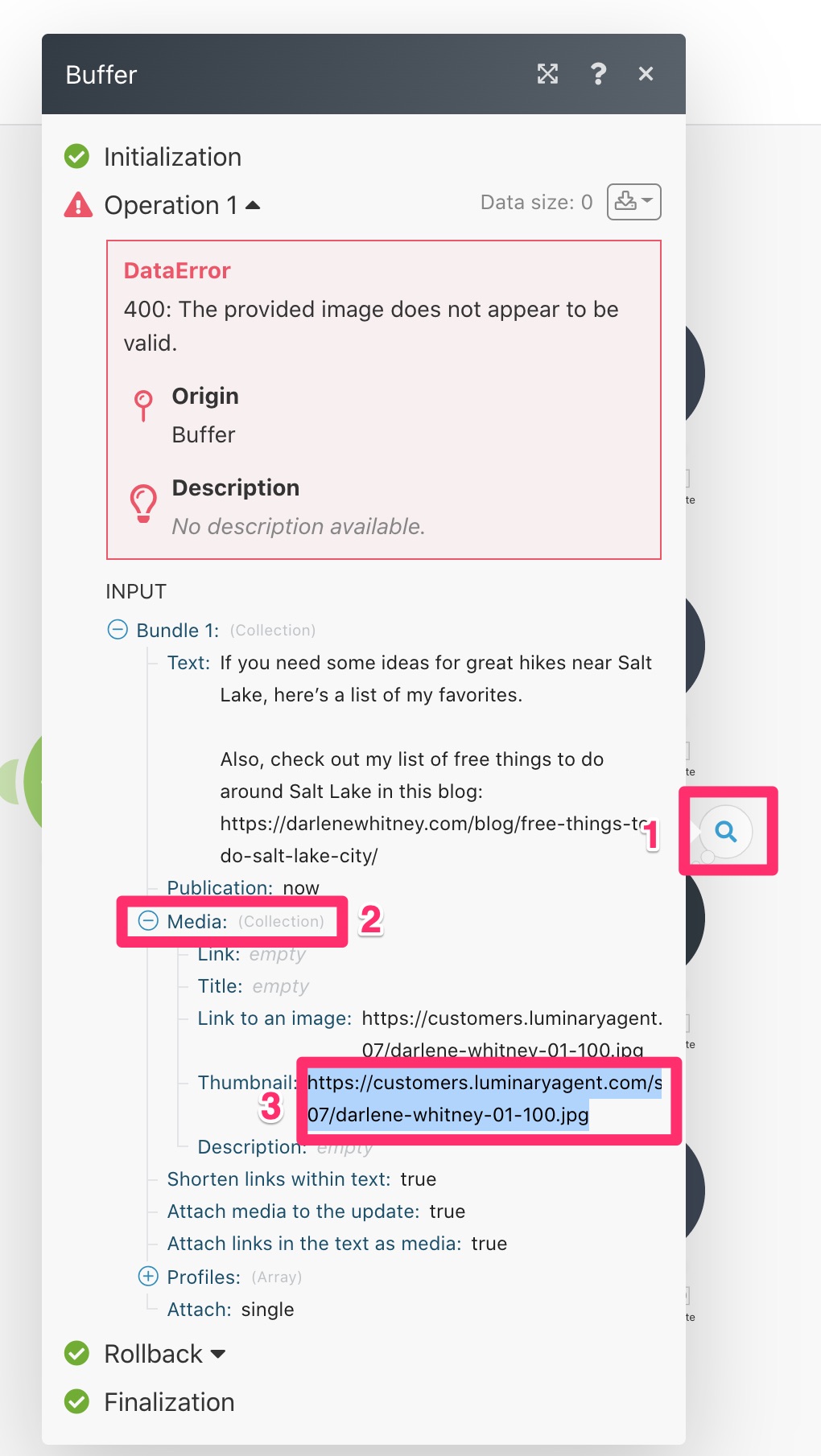
E) Check in the File Manager for customers.luminaryagent.com to see if this image exists. Most likely, it does not. If it doesn’t exist, upload it
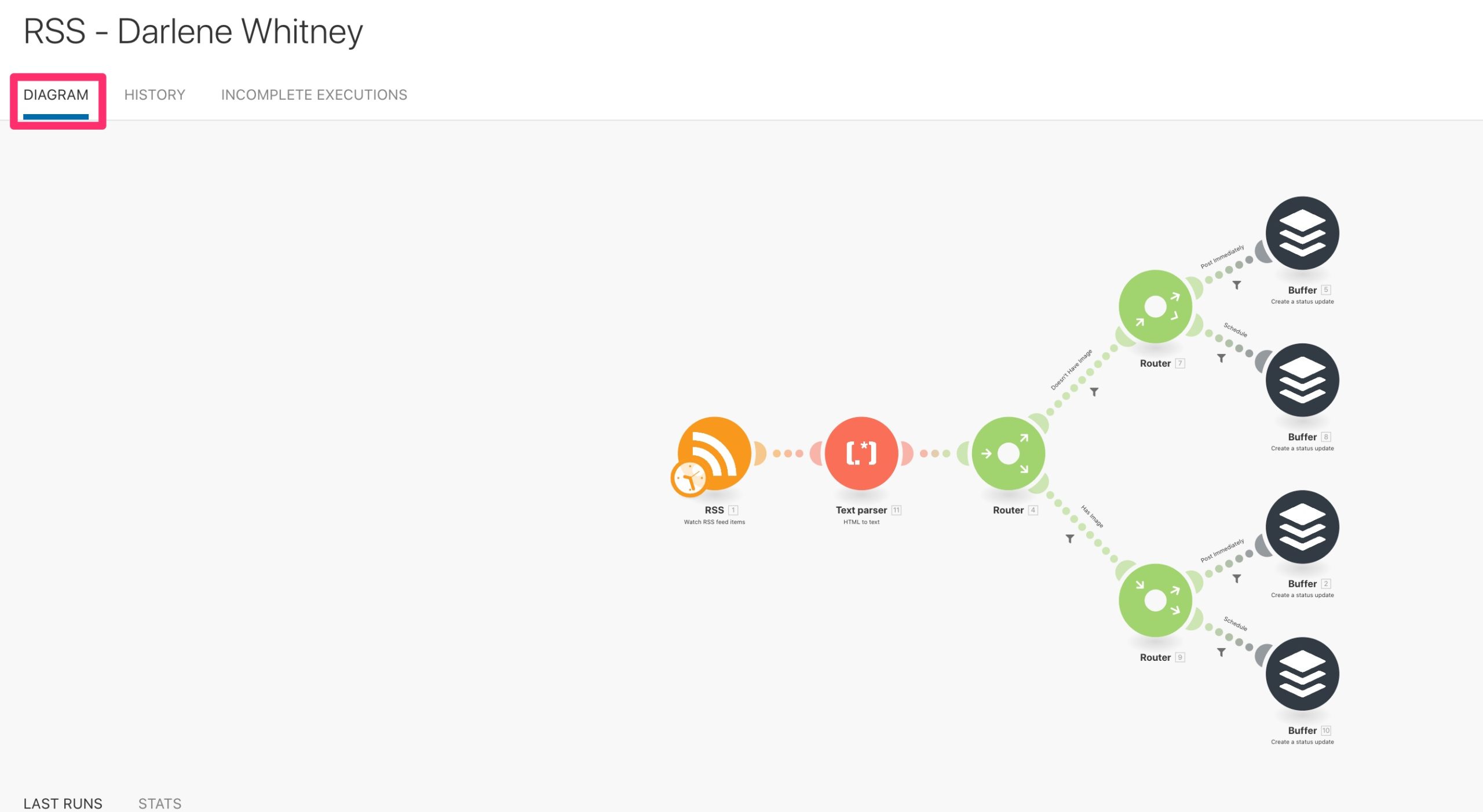
F) Back on the Integromat Scenario, click “DIAGRAM”
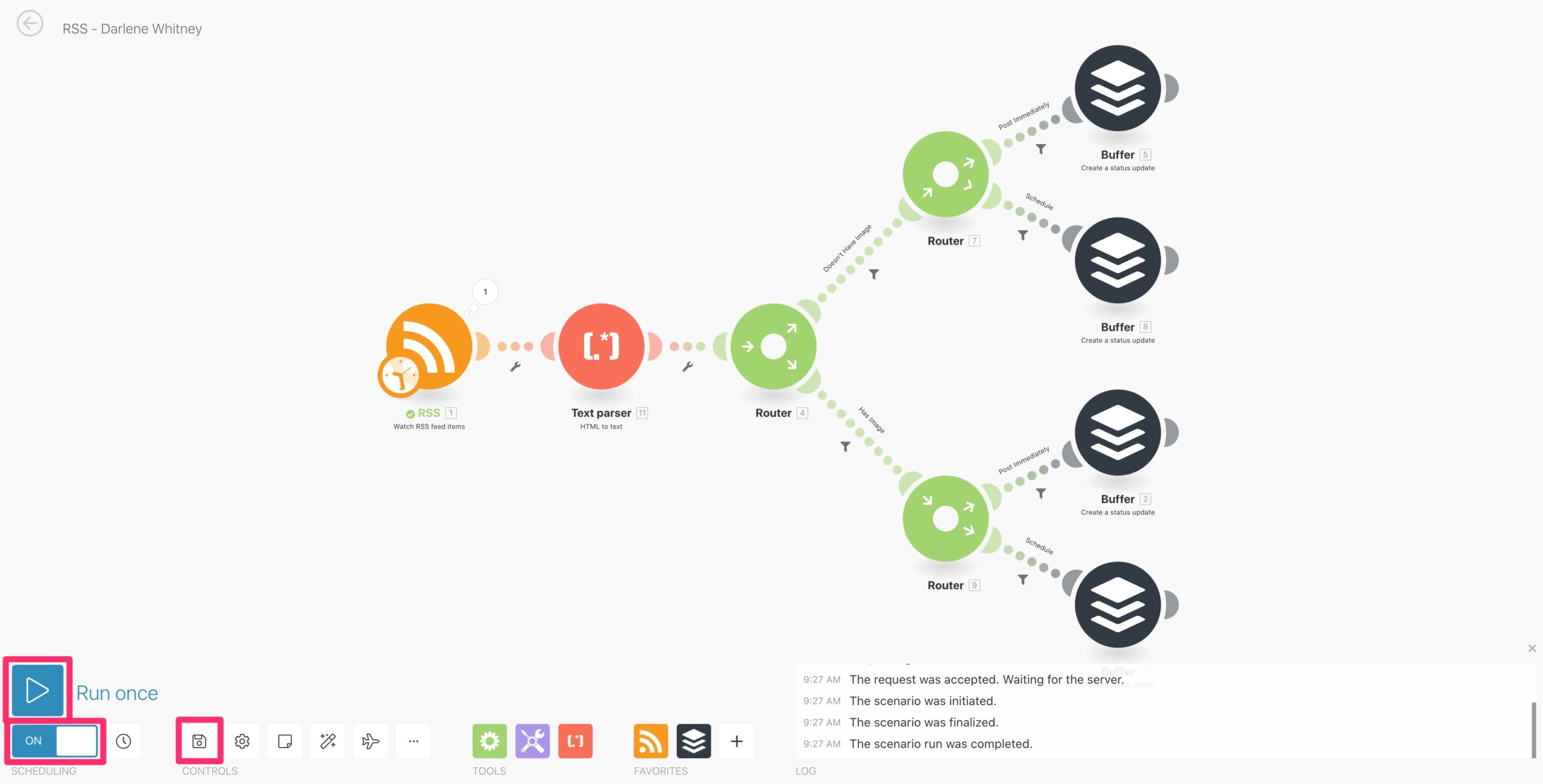
G) Click into the diagram and click “Run once”
H) Assuming the scenario ran successfully, make sure the Scheduling toggle is ON and click “Save”
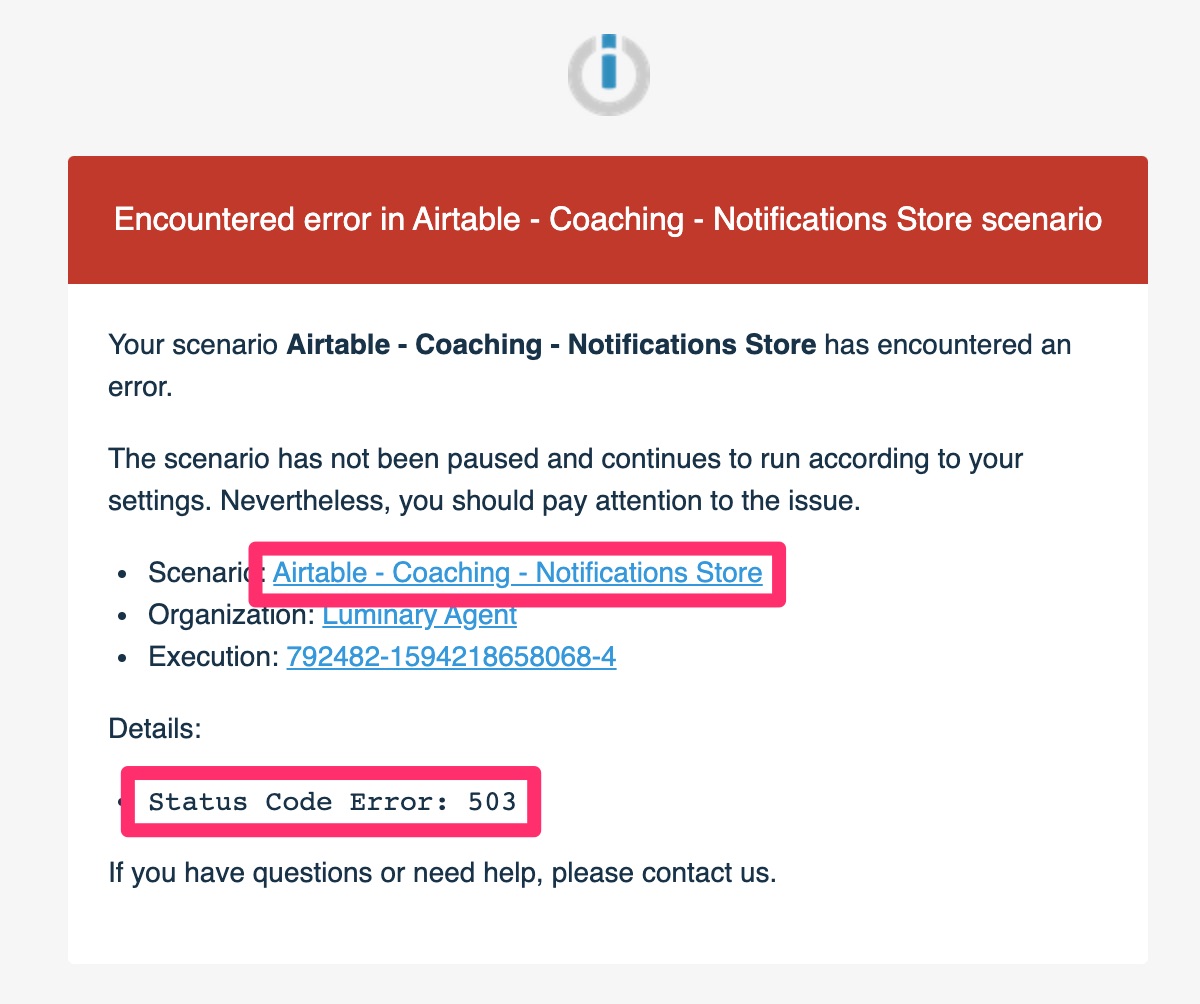
Status Code Error: 503
If the error is “Status Code Error: 503” then take these steps to try and resolve it.
A) Click on the “Scenario” link in the error ticket
B) Sign into Integromat using the login credentials found in 1Password
C) If the scenario has had a “Success” status since the error, you may simply delete the error ticket. Otherwise, let Cody know.

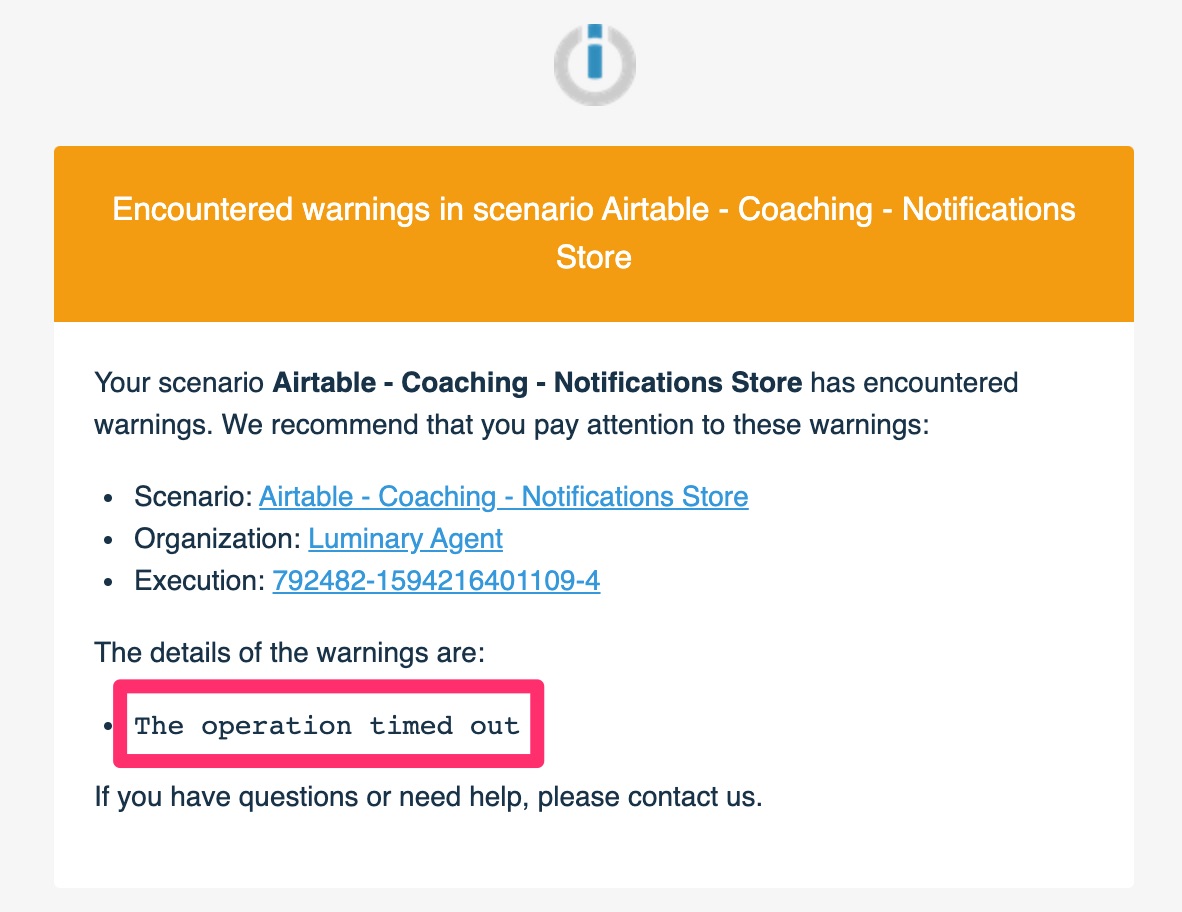
The operation timed out
If the error is “The operation timed out” you may simply delete this ticket