
Create "Luminary Agent" SmartView
A) Login to the client’s KW Command account at this link using the credentials found in 1Password
B) Navigate to the Contacts screen
C) Click on the “SmartView” dropdown and click “Create Smartview”
D) Type “Luminary Agent” and click “Save Smart View”
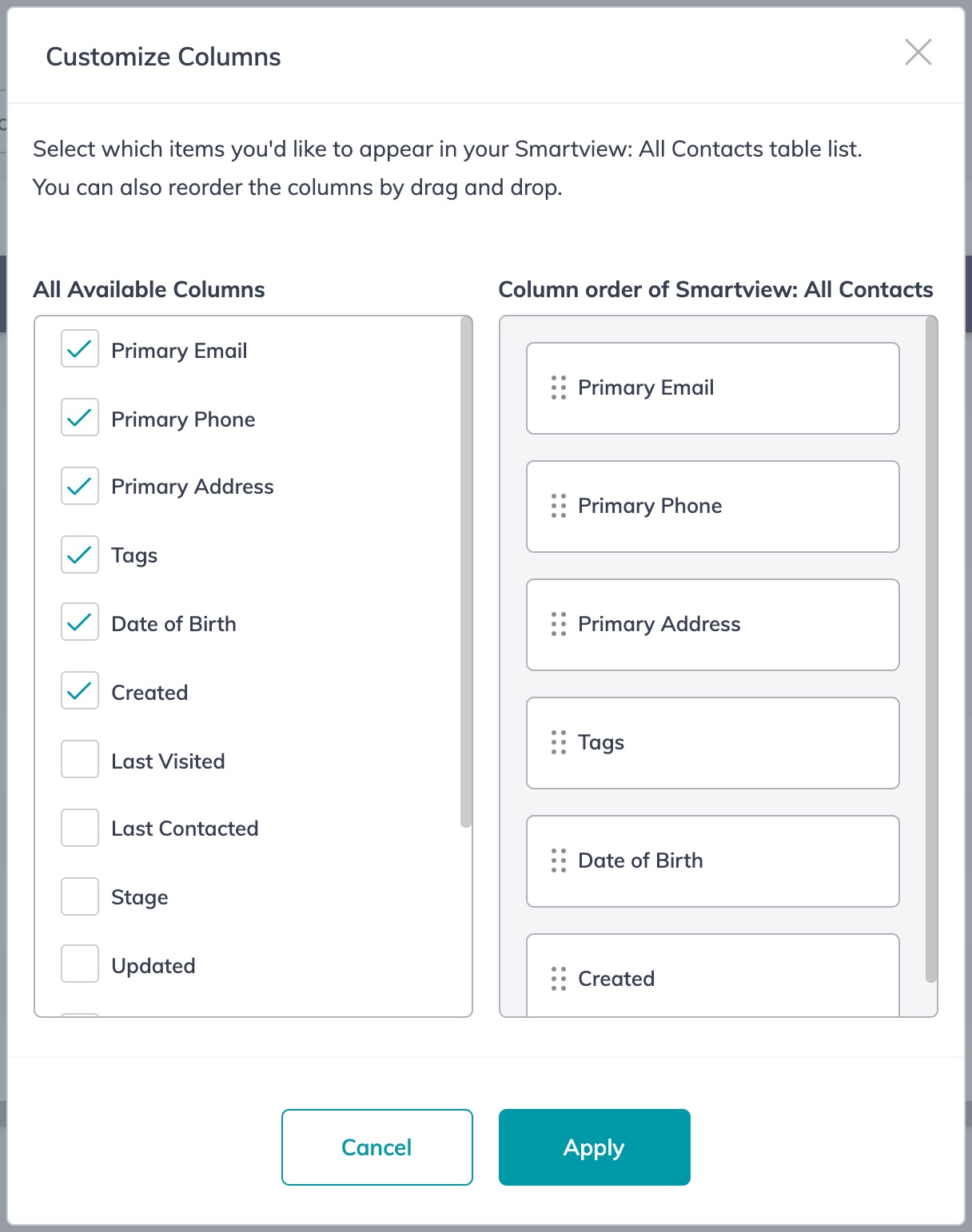
E) Click “Customize Columns” and show/hide/arrange the columns in the following order and click “Apply”
- Primary Email
- Primary Phone
- Primary Address
- Tags
- Date of Birth
- Created
E) Click on the “Primary Address” column and sort it Ascending (A-Z)
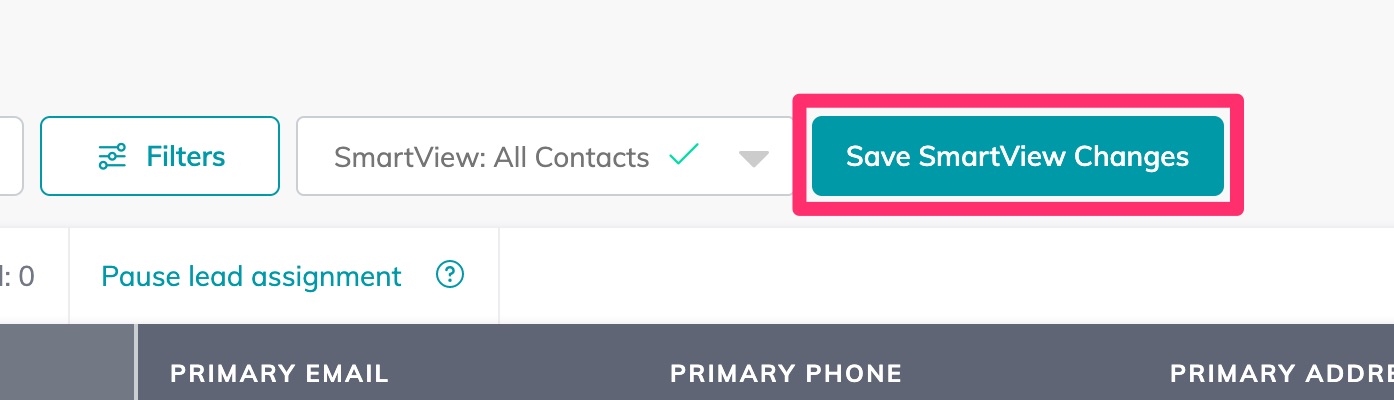
F) Click the green “Save SmartView Changes” button
Clean Up Contacts - Check Before Opening
A) Before you open individual contacts to edit them, check the contact(s) for the following:
- Is only one person listed?
- If two people are listed, such as Cody & Palmer Martens, you’ll need to separate these people out into two contacts.
- Check to see if one of the persons also has their own contact. If so, you can remove that person from the names and keep the other. For example, if there were two contacts: (1) Cody & Palmer Martens and (2) Cody Martens, I would remove “Cody &” from the (1) contact so I was left with (1) Palmer Martens and (2) Cody Martens.
-
Do they have a spouse?
-
If the addresses are the same, you will be comparing them and linking them together.
-
- Is there any dummy contact info?
- If there are any fake emails or fake phone numbers, you’ll be removing them when you edit the contact.
-
Is there a duplicate? Which one to keep, which one to archive?
-
If one has linked Opportunities, SmartPlans, Tasks, or Notes, keep that one.
- If neither have linked OSTN’s, then keep the one with the most info. (Maybe one doesn’t have an email or phone, but the other does.)
-
-
Do spouses have same tags?
- If two people have the same address, you’ll want to make sure they both have the same tags.
-
Is there an email and an address?
- If there is an email and a physical address, we’ll be adding the MNN tag and starting the Monthly Neighborhood Nurture SmartPlan.
Once you have answered these questions, you can edit the contact(s).
Back to TopClean Up Contacts - During Edit
Once you’ve answered the previous questions, it’s time to edit the contact(s).
A) Click on the contact and click the Edit (pencil) icon. For each contact, do the following:
- Edit the Name
- Make sure each contact is only one person.
-
Link the Spouse
- Delete any dummy contact info?
-
Add any missing info from the duplicate contact.
-
If the contact you’re keeping is missing something from the contact you’re going to archive, copy that info over.
-
-
Add the same tags the spouse has.
-
IF there is an email and a physical address, add the MNN tag.
- Copy and format address in dropdown.
Clean Up Contacts - After Edit
Add MNN SmartPlan
A) If the contact has an email address and a physical address, add the “Monthly Neighborhood Nurture” SmartPlan by clicking SmartPlans, then “Add to SmartPlan”
B) click “Select” next to “Monthly Neighborhood Nurture” then click “Confirm” and “Confirm” again
Archive Duplicate Contact(s)
C) If you need to archive any duplicate contacts, open the contact, click the three dots to the right of their name, and click “Archive”
Back to Top