
Facebook Business Pages
A) Using your own personal Facebook account, login to the Creator Studio
B) Click “Create Post” > “Create Post”
C) Select the client’s Facebook page from the dialog box
D) Copy the social status found in the ProcessKit project’s Details screen and paste it into the “What’s on your mind?” box
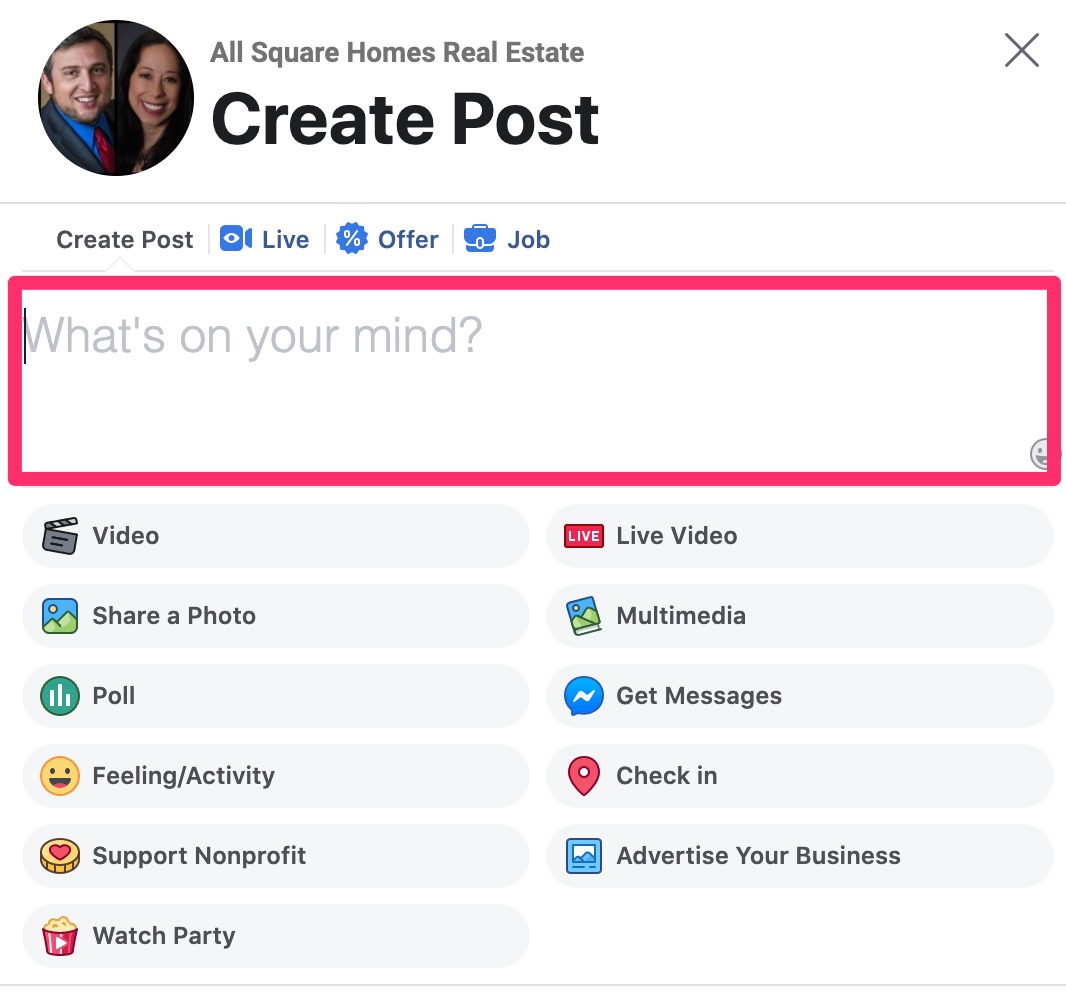
E) If the social status contains the shortcode, delete it and replace it with the actual blog post link from the client’s website. You can find the client’s website in their Airtable contact record at this link.
F) If the project type is a graphic, click “Share a Photo” and upload the client’s graphic
G) Click “Publish
Back to TopInstagram Accounts
A) Using your own personal Facebook account, login to the Creator Studio
B) Click on the Instagram logo in the top center of the screen
C) Click “Create Post” > “Instagram Feed”
D) Select the client’s Instagram account from the dialog box
E) Copy the social status found in the ProcessKit project’s Details screen and paste it into the “Write your caption…” box
- If the social status contains the shortcode, delete it.
- If the social status contains a link, delete it. Also delete any reference to a link such as “To view this property, click here:” or “Read the latest post here:”.
F) Click “Add Content” > “From File Upload” and select the client’s graphic you’re posting
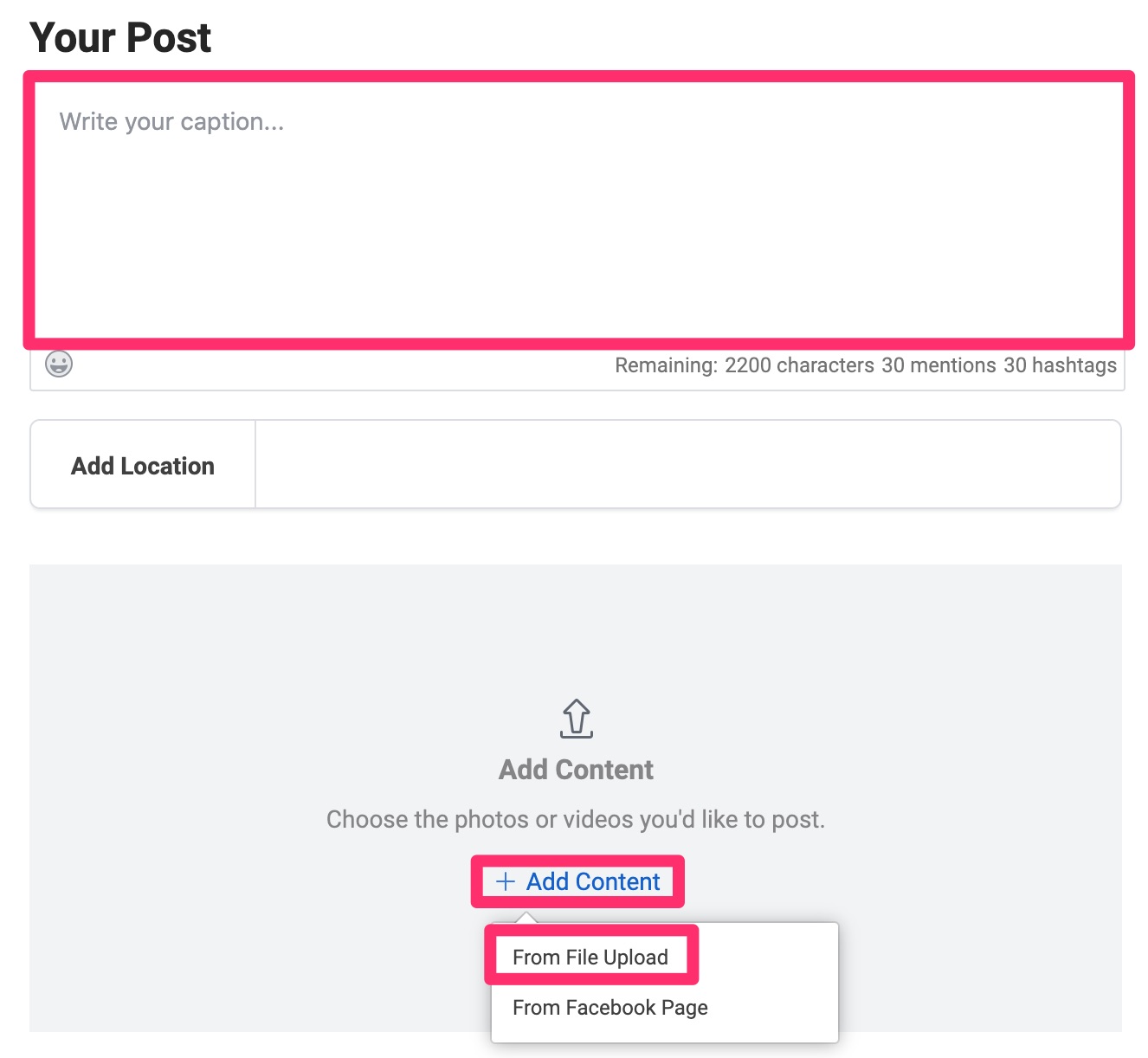
G) Click “Publish”
Back to TopPersonal Facebook Profiles
A) Using the Remote Desktop, login to the client’s Facebook account using the credentials in 1Password
B) Copy the social status from the ProcessKit project’s Details screen and paste it into the “What’s on your mind?” box
C) If there is a [latest_posts] shortcode, find the latest post on the client’s website (found on their Airtable record here) and replace the shortcode with the actual link
D) If the post is a graphic post, find and upload the graphic as well
Back to TopLinkedIn Accounts
A) Using the Remote Desktop, login to the client’s LinkedIn account using the credentials in 1Password
B) Click the “Start a post” box
C) In the dialog box that appears, copy the social status from the ProcessKit project’s Details screen and paste it into the “What do you want to talk about” box
D) If the post is a graphic post, click the “camera” icon and find and upload the graphic as well
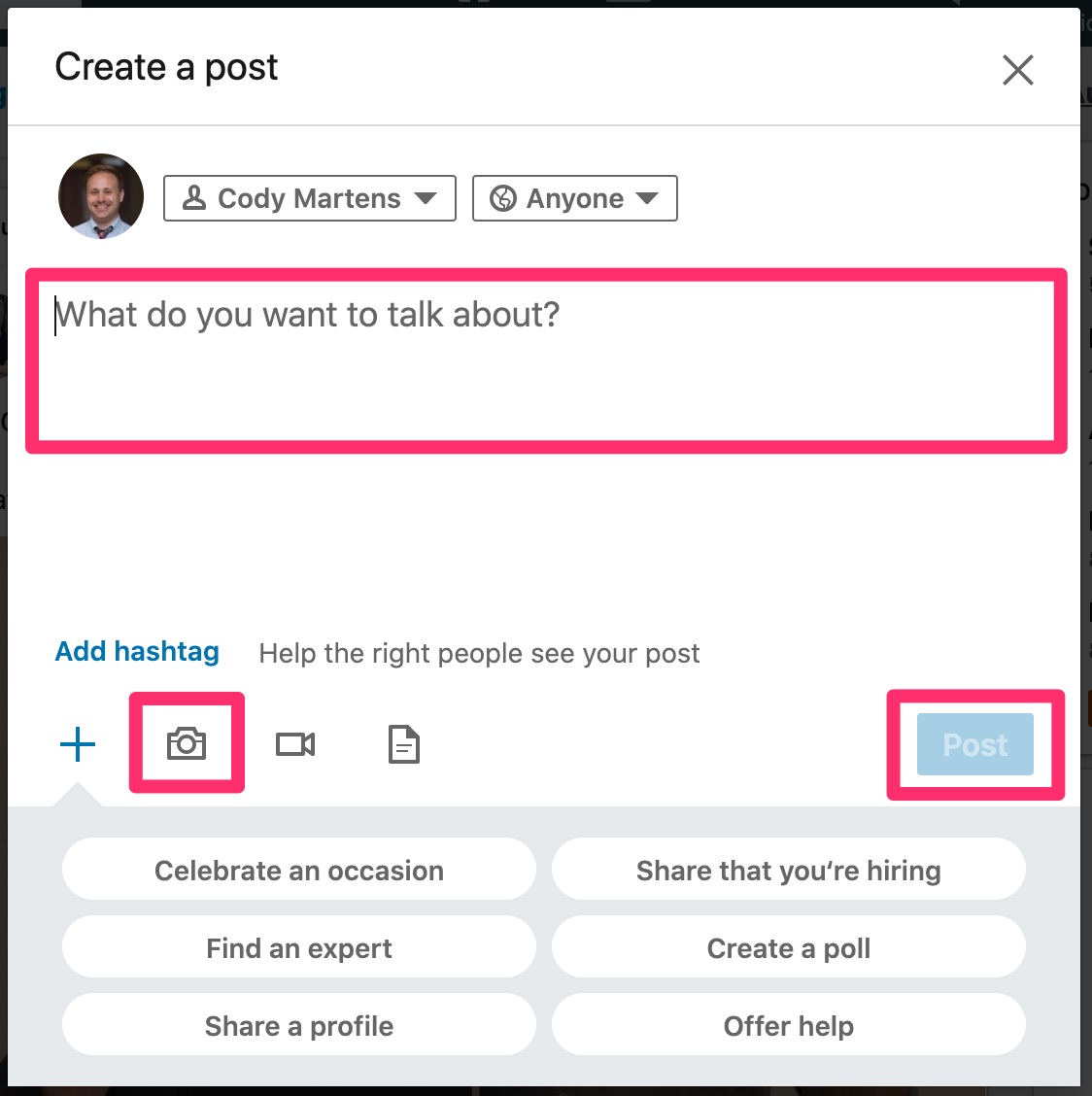
E) Click “Post”
Back to Top