
Post to Facebook Page
A) Login to Facebook Creator Studio at this link
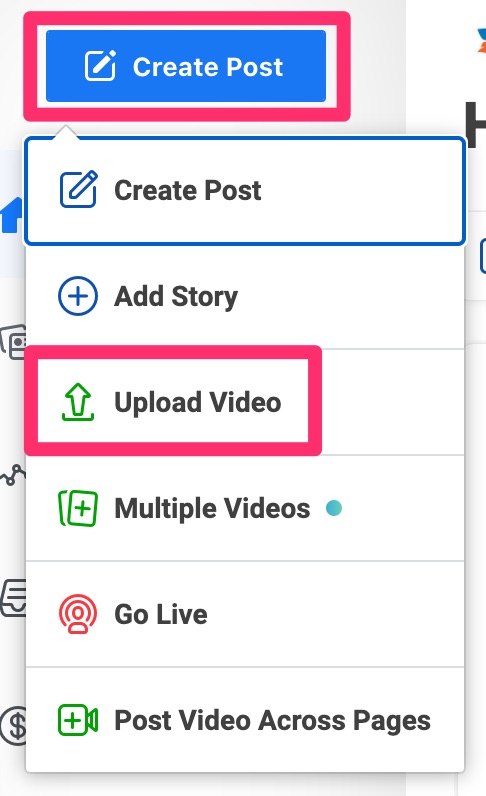
B) Click “Create Post” then “Upload Video”
C) Choose the video from Google Drive and click “Open”
D) Select the client’s Facebook page
E) Copy and paste the Title and Description from the ProcessKit task list
F) Click “Thumbnail” on the right, then click “Custom Image”
G) Choose the thumbnail image from Google Drive and click “Open”
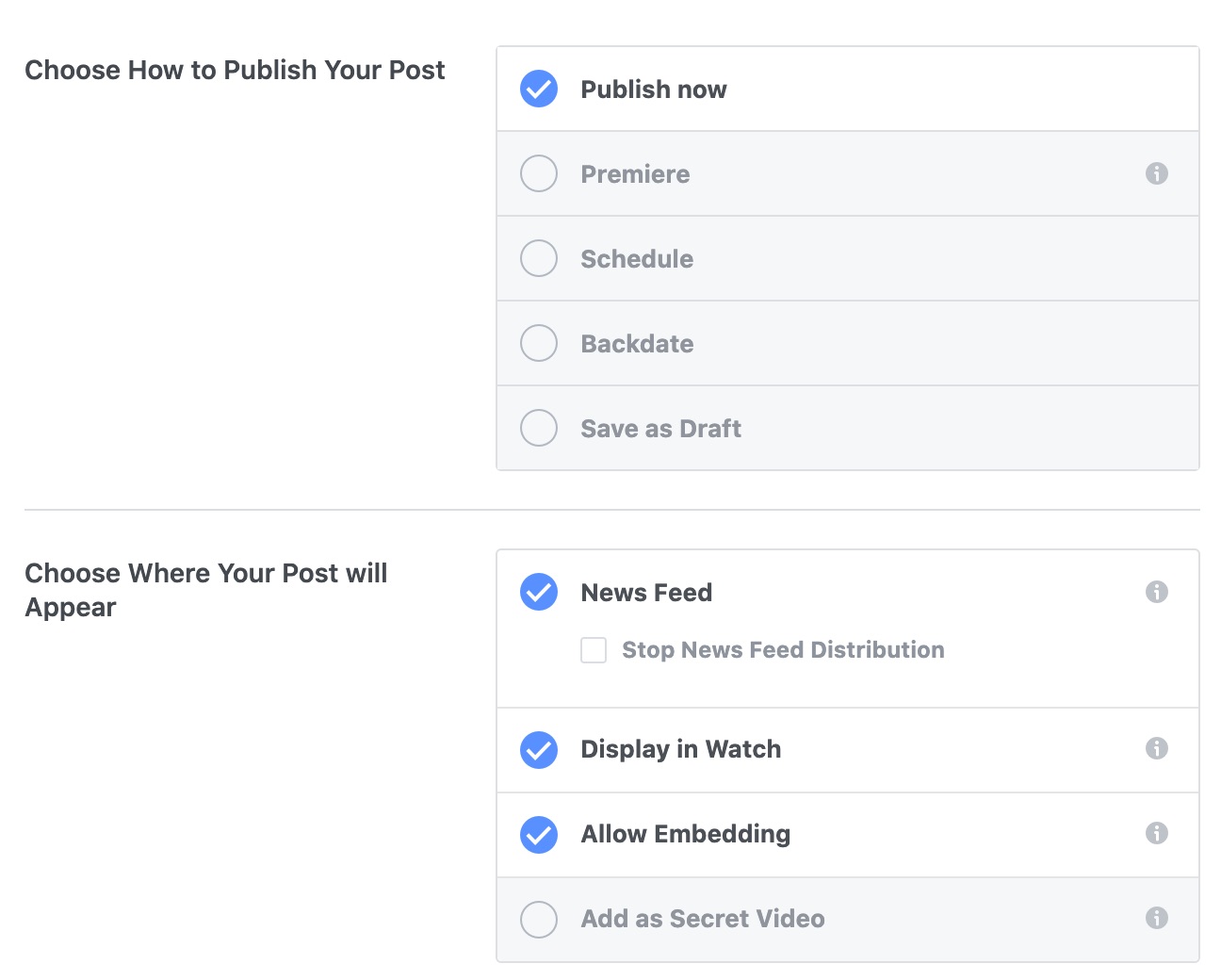
H) Click “Next” and make sure the following items are checked:
I) Click “Publish”
Back to TopPost to Facebook Profile
A) Connect to the Remote Desktop
B) Login to the client’s personal Facebook account using the login credentials in 1Password
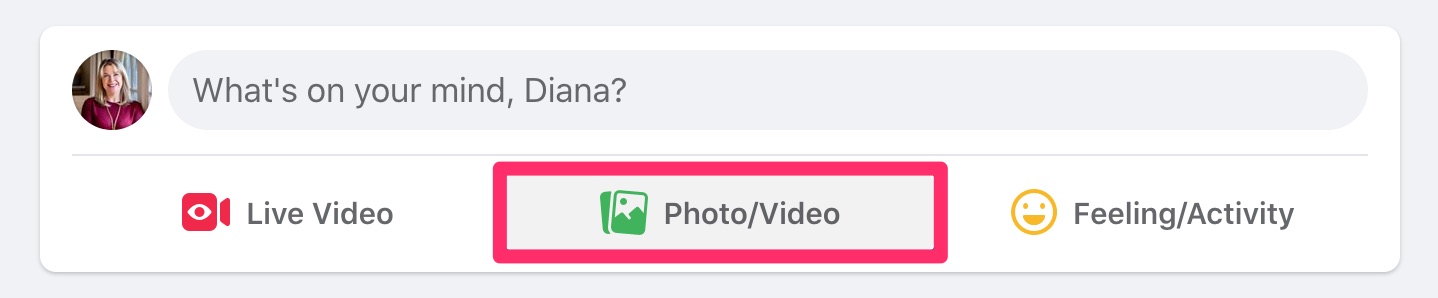
C) From the home feed, click “Photo/Video”
D) Select the 16:9 video and click “Open”
E) In the dialog box that appears, copy and paste the title and description of the video with an extra line between them
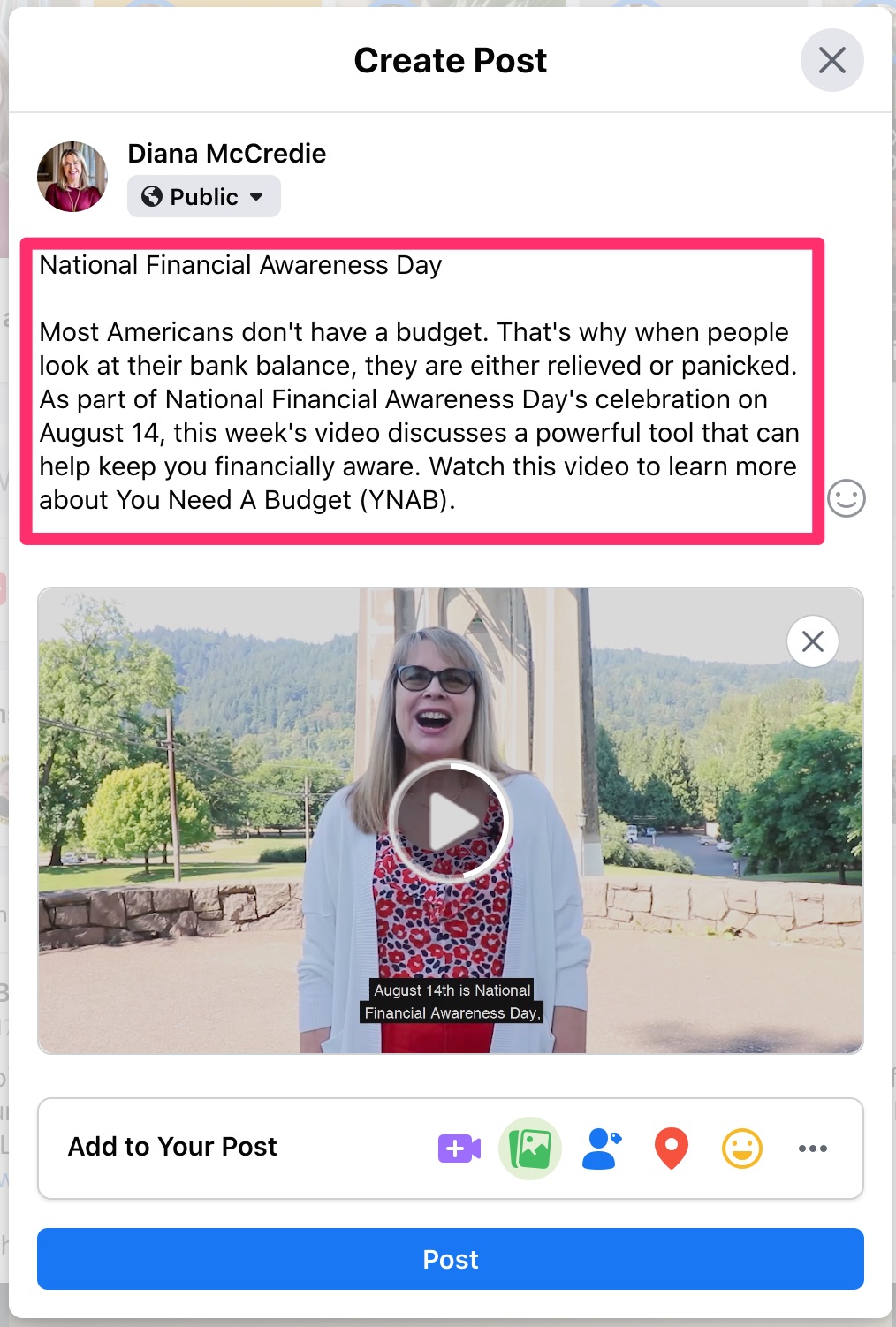
F) Click “Post”
Back to TopPost to Instagram Profile
A) Login to Facebook Creator Studio at this link
B) Click the Instagram button in the top-middle of the screen to switch to Instagram posting

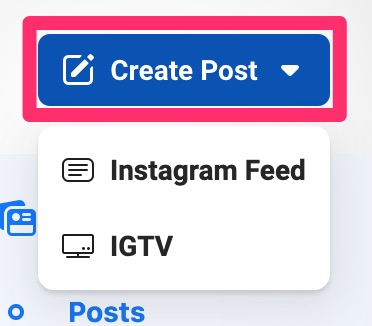
C) Click “Create Post”. IF the video is over 1 minute, then “IGTV”. IF the video is under 1 minute, then click “Instagram Feed”.
D) Select the client’s Instagram account
E) Click “From File Upload”, select the 9:16 vertical video from Google Drive, and click “Open”
F) Copy the title and description into the appropriate boxes
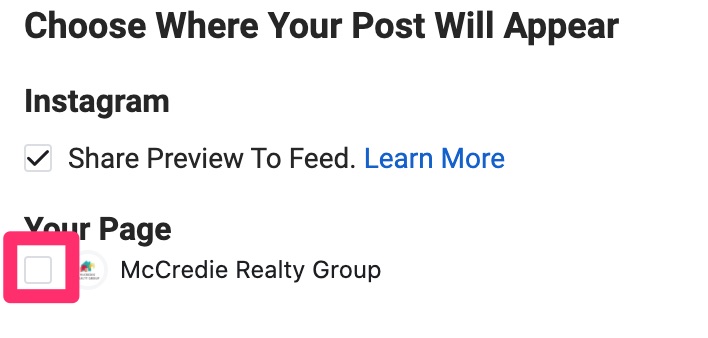
G) Make sure Your Page is unchecked
H) Click “Cover Image” on the right
I) Click “Add Image” next to “Custom Upload”, select the thumbnail, and click “Open”
J) Click “Publish”
Back to TopPost to LinkedIn Account
A) Connect to the Remote Desktop
B) Go to LinkedIn at this link, click “Sign In”, and sign in using the client’s credentials from 1Password
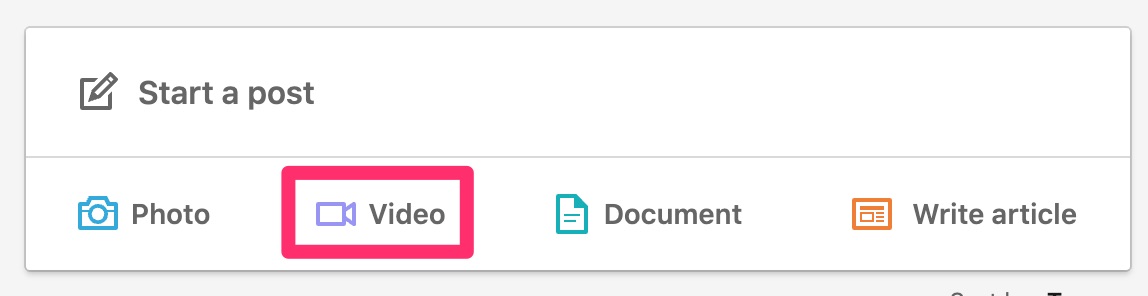
C) On the home feed, click “Video” in the “Start a post” box
D) Select the 16:9 video from Google Drive and click “Open”
E) Click “Done”
F) Copy and paste the title and description from the ProcessKit task list with a blank line between them
G) Click “Post”
Back to TopPost to YouTube
A) Login to YouTube using the Luminary Agent “Us” account with the credentials from 1Password
B)
Back to Top