Add Luminary Agent to Client's Business Manager
A) Login to the client’s Facebook account
B) Go to https://business.facebook.com/
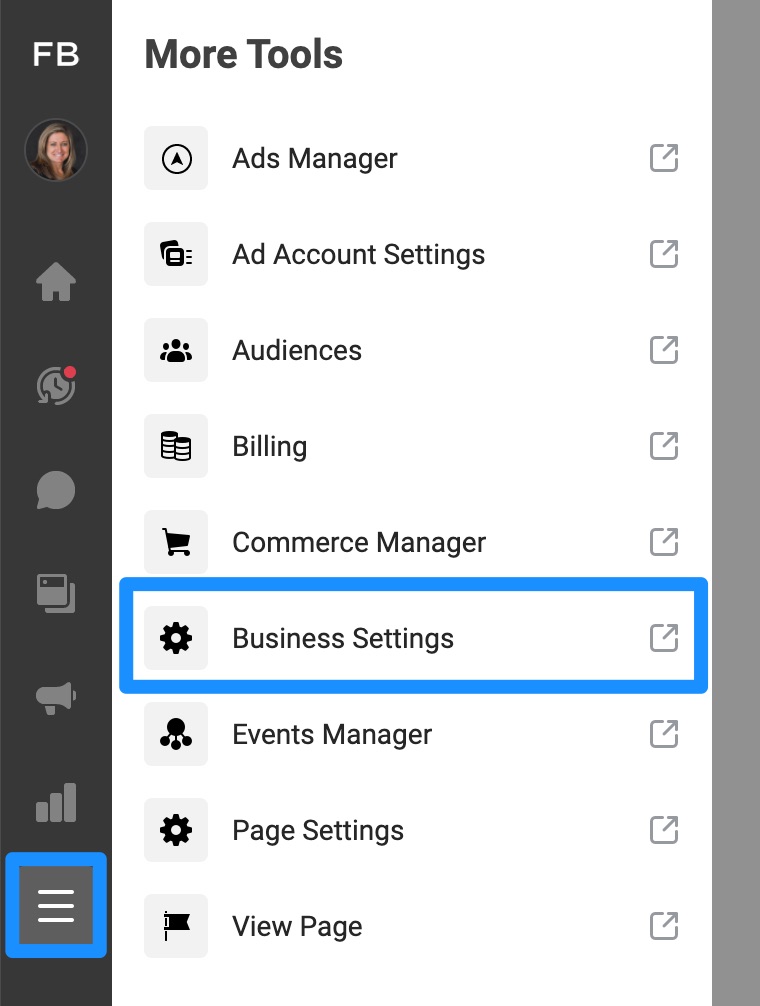
C) Click on the three lines to expand the menu and click on “Business Settings”
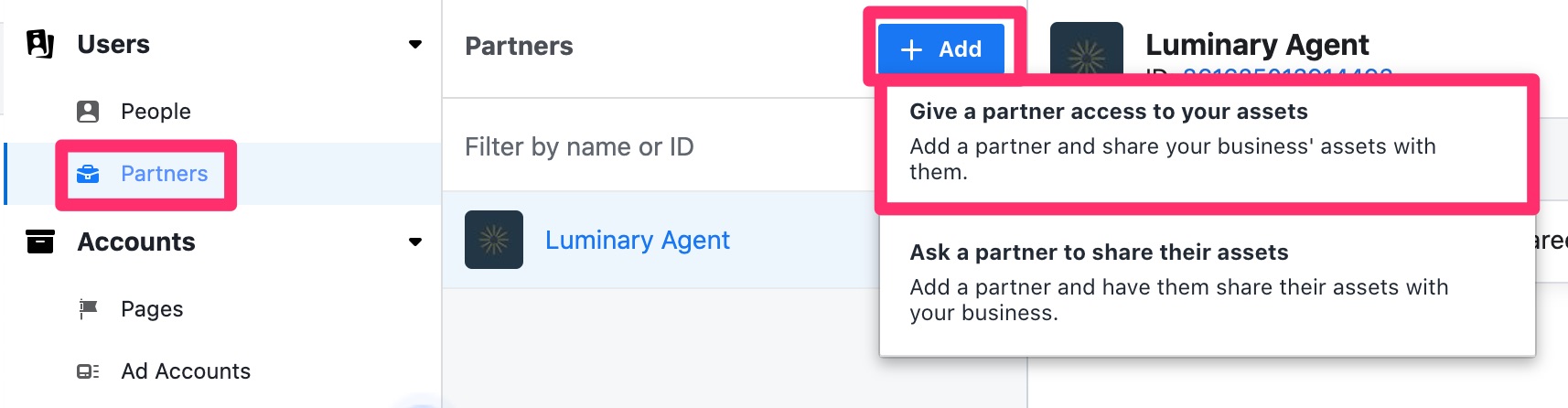
D) Go to Partners > Add > Give a partner access to your assets
E) Enter our partner ID of 861625013914493 and click Next
F) Add all pages, ad accounts, pixels, and Instagram accounts, toggling on all toggles
G) Click “Save Changes”
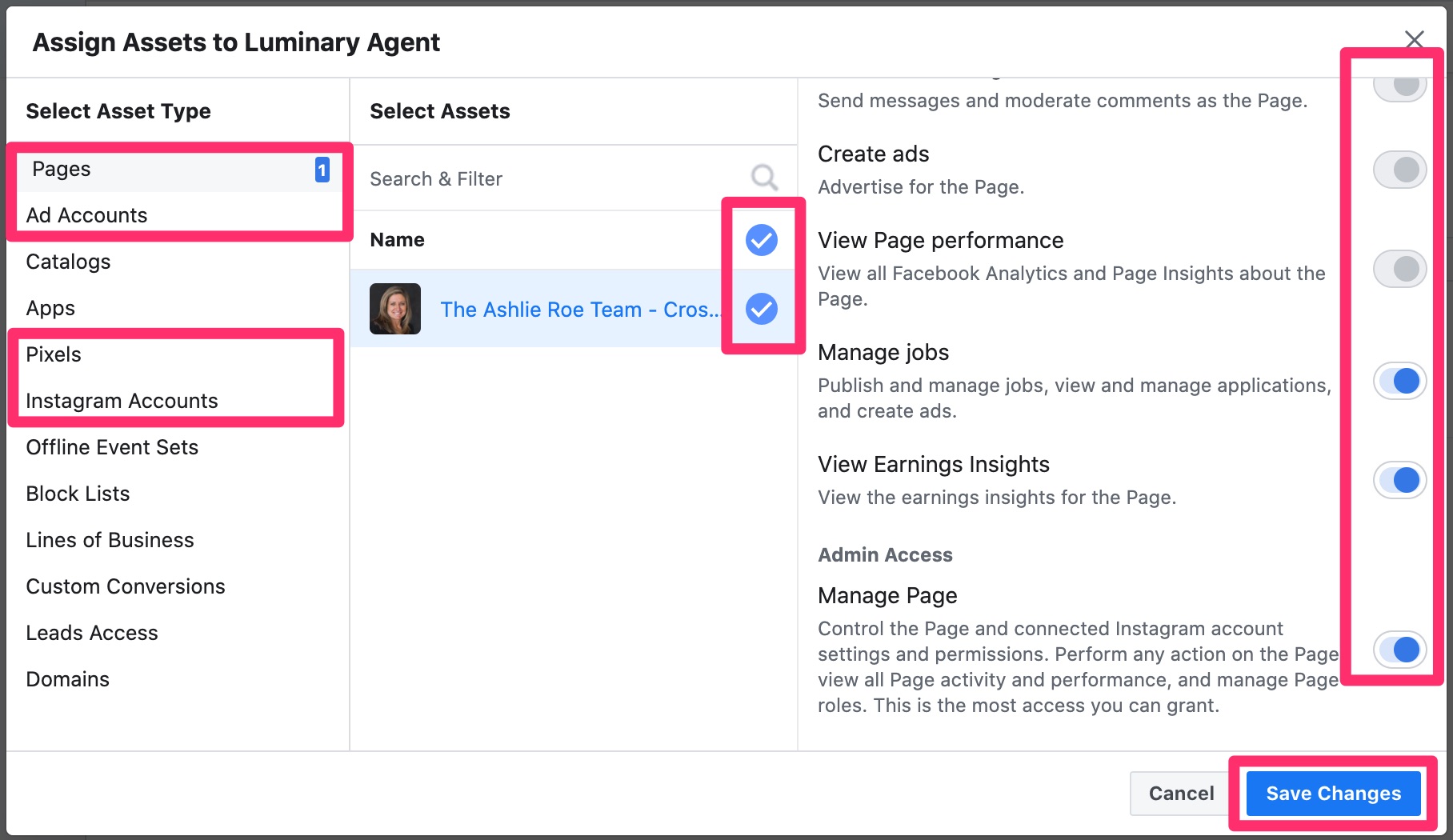
If you get an error, de-select the Instagram account and click Save Changes again. Then, follow these steps to add the Instagram account on its own:
H) Still in the client’s Business Manger, go to “Instagram Accounts” under “Accounts” and click “Assign Partners”
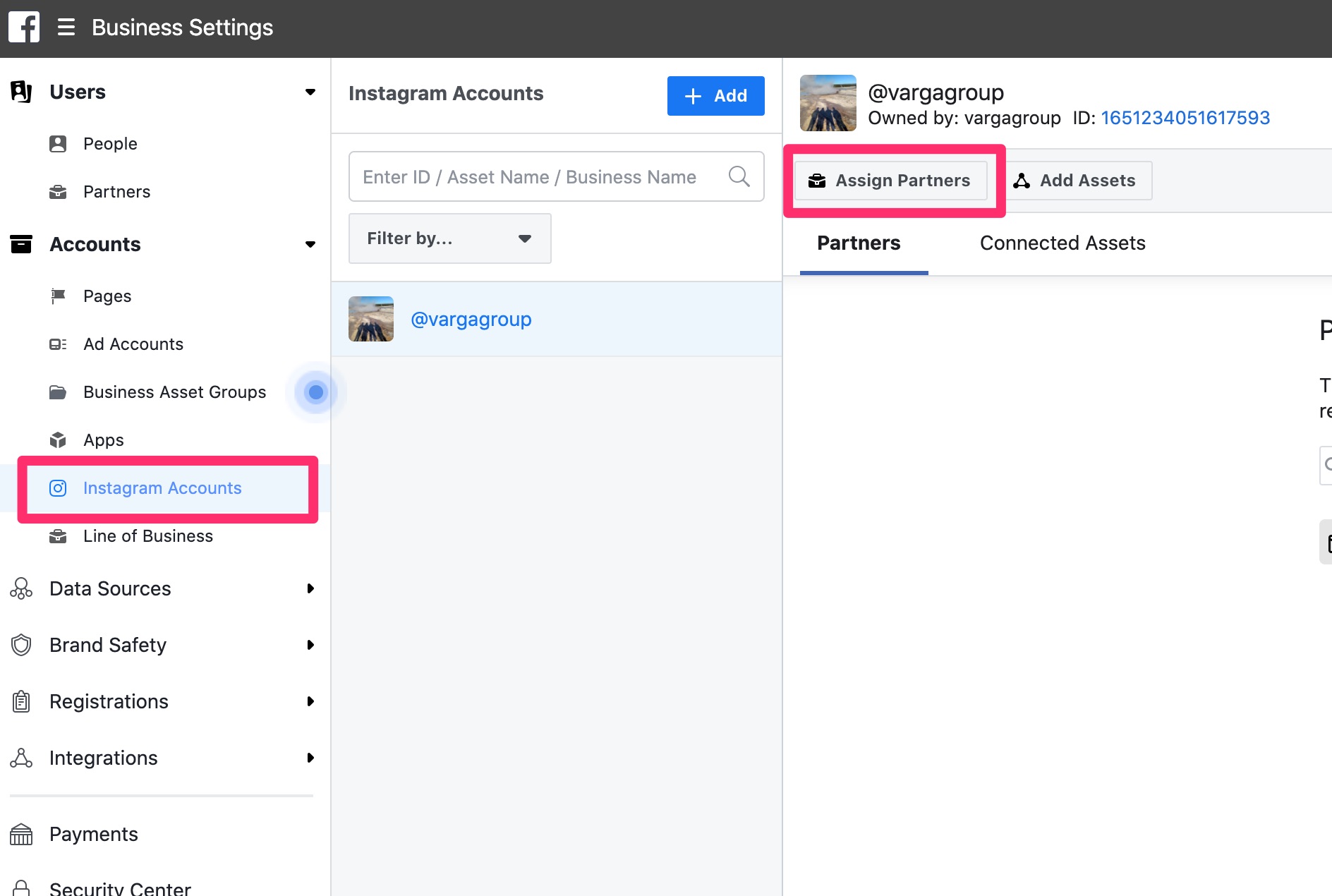
I) Enter our partner ID of 861625013914493 and click Next
Back to TopAdd Yourself as an Admin
Make sure are logged OUT of the client’s account and back into YOUR account for this step.
A) In Business Settings, go to Pages, click on the newly added page, and click “Add People”
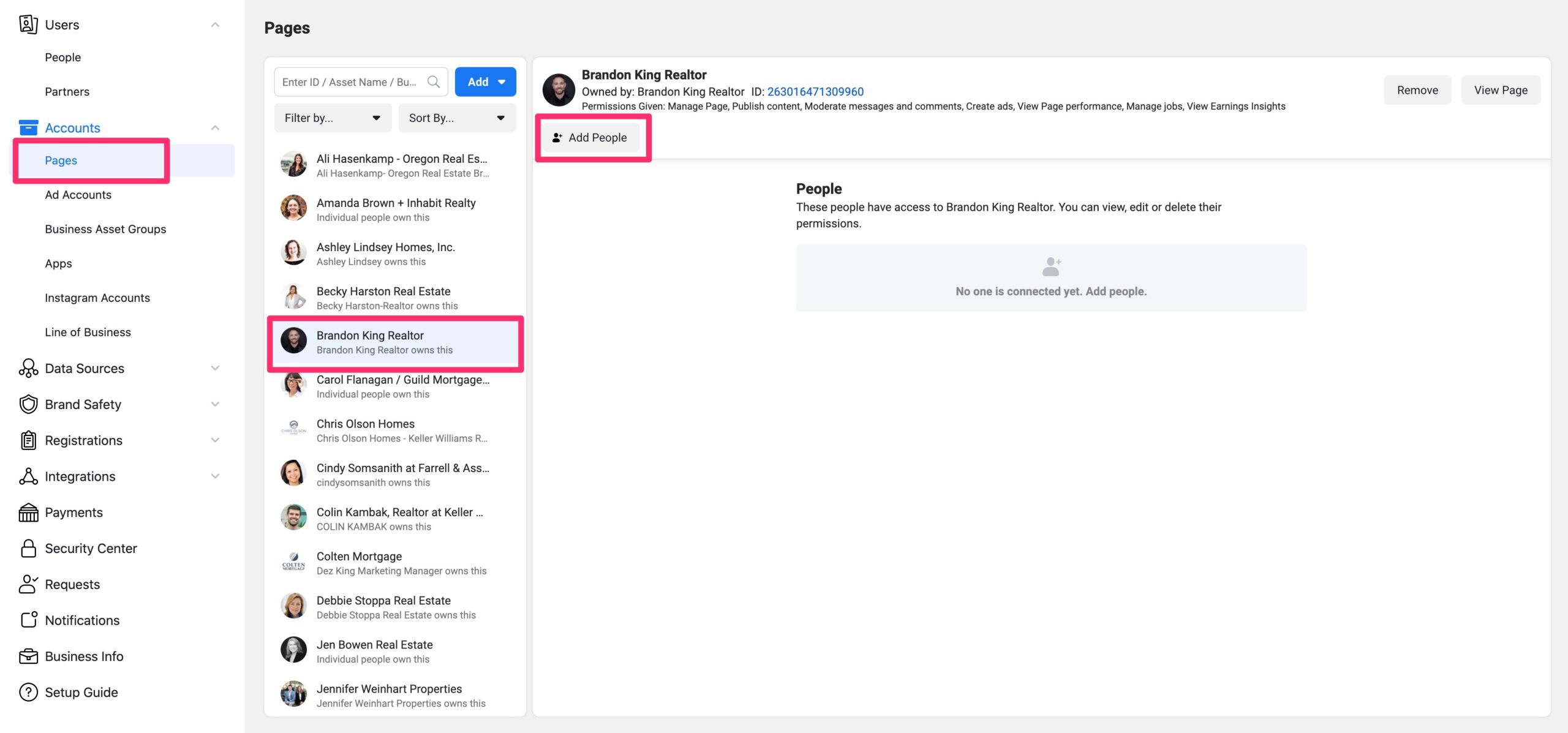
B) Choose yourself, make sure all toggles are toggled ON, and click “Assign”
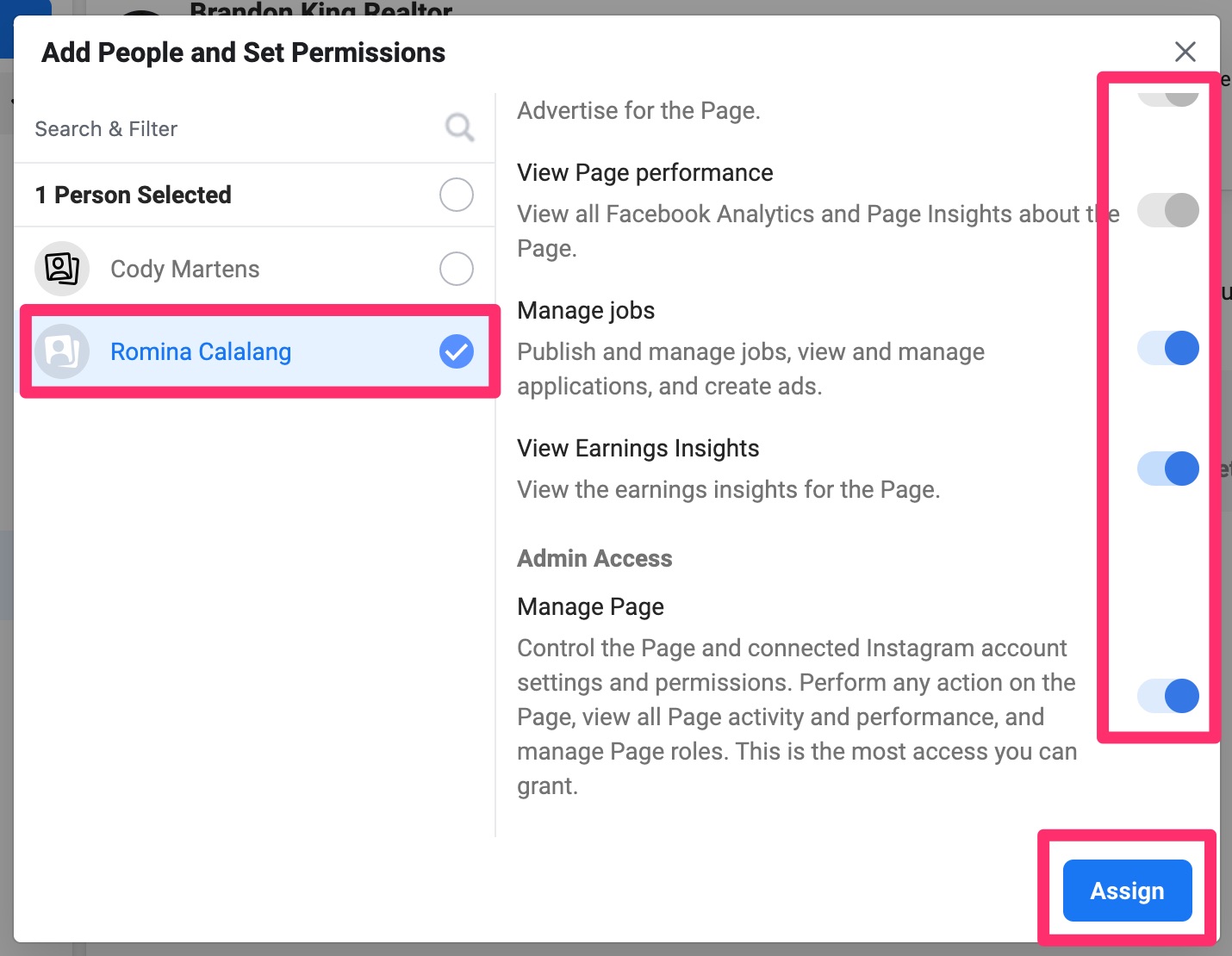
C) Only add yourself and not anyone else, unless otherwise instructed
Back to TopCreate Social Media Artboard
A) Open the Social MASTER .ai file for this client’s market
B) Create a new blank artboard
C) Name the artboard using the name found in the client’s Airtable record
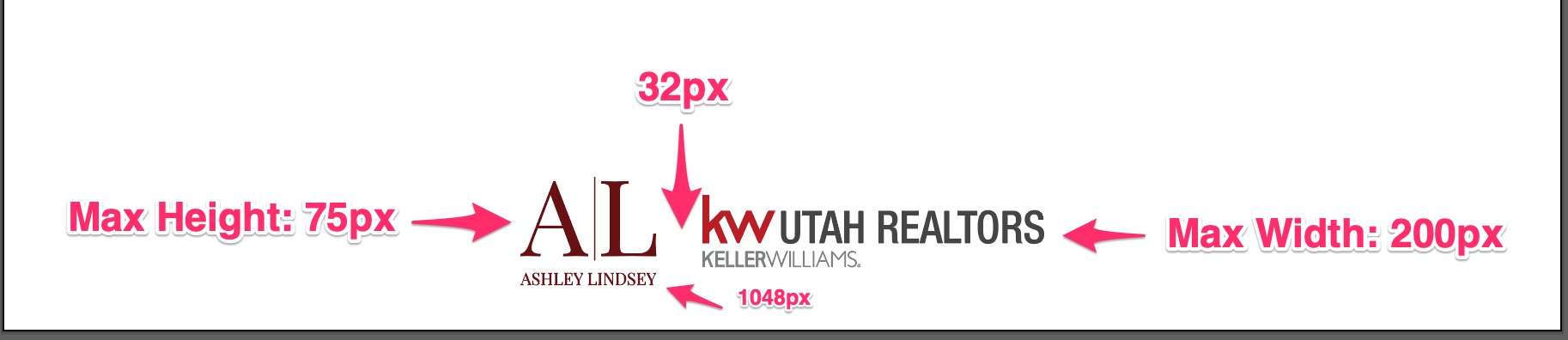
D) For both the white logos and the color logos, add the company logo and the personal logo to the bottom of the artboard (specs below). Make sure the white logos and color logos are placed on their respective layers.
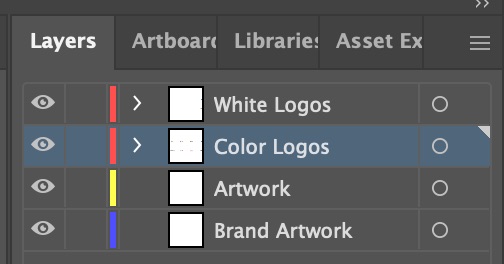
Logo Placement Specs:
- The max logo height is 75px
- The max logo width is 200px
- The bottom of the logo should be 32px from the bottom edge of the artboard (at 1048px)
- If there is a company logo and a personal logo, they should have 32px between them.
- The logo should be centered horizontally on the artboard at 540px